Lab 0: Prerequisites and setup
Setup 20 min Beginner
Overview
You install and verify the toolchain once. Every later lab assumes this lab is done.
Learning objectives
By the end of this lab, you will be able to:
- Prepare a Windows PowerShell session that shows agent output correctly (UTF-8).
- Install and check Node.js, Git, GitHub CLI and Copilot CLI with
winget. - Add the
ai-team-sdlcmarketplace and install the plugin in Copilot CLI. - Create a practice repository and bootstrap it with the
ait-initskill. - Explain the difference between
/product-*prompts (VS Code) and skills (CLI). - Estimate the time and credit cost of a lifecycle run before you start one.
Cost and credits
A full run is long and uses real credits
In the recorded Focus Garden sample, one run through to the sign-off package took about 166 minutes and about 2,097 AI credits. A resume run took 19 minutes and about 392 credits. A full lifecycle run can use about 2,000 credits or more and 2 to 3 hours.
To save cost: follow the recorded runs and jump to the checkpoints, keep your app small (3 or 4 features), and run one bounded phase at a time. You can stop a run with Ctrl+C and resume it later from its saved state.
Steps
Step 1: Use a UTF-8 console
Agent output contains accents and symbols. A default Windows console may display them as garbage (ΓÇö). Set UTF-8 in every new session:
[Console]::OutputEncoding = [System.Text.Encoding]::UTF8
$OutputEncoding = [System.Text.Encoding]::UTF8
[Console]::OutputEncoding.WebName
Expected result
The last command prints utf-8.
Make it permanent
Add the first two lines to your PowerShell profile: notepad $PROFILE (create the file if it does not exist).
Step 2: Install and check the tools
Install what is missing. winget ships with current Windows 10 and 11 (it is part of App Installer).
winget install --id OpenJS.NodeJS.LTS -e
winget install --id Git.Git -e
winget install --id GitHub.cli -e
winget install --id GitHub.Copilot -e
Close the terminal and open a new one so the new PATH is loaded (and set UTF-8 again, step 1). Then check:

Expected result
Four version lines print, with no "not recognized" error. The recorded run used Copilot CLI 1.0.91 and plugin v1.0.2; newer versions are fine.
Step 3: Sign in to GitHub and Copilot
Follow the browser prompts for gh auth login (GitHub.com, HTTPS, web browser). In copilot, complete the sign-in if it asks (/login), then leave with Ctrl+C twice or /exit.
Expected result
gh auth status reports that you are logged in to github.com, and copilot opens without an authentication error.
Step 4: Add the marketplace and install the plugin
copilot plugin marketplace add devopsabcs-engineering/ai-team-sdlc
copilot plugin install ai-team-sdlc@ai-team-sdlc
Expected result
Each command ends without an error and confirms the marketplace was added and the plugin installed.
Step 5: Verify the plugin

Expected result
The list includes ai-team-sdlc (version 1.0.2 at the time of writing).
Step 6: Create the practice repository
Use a short path, outside OneDrive-synced folders, to avoid file-lock problems.
New-Item -ItemType Directory -Force "$HOME\src\ai-sdlc-practice" | Out-Null
Set-Location -LiteralPath "$HOME\src\ai-sdlc-practice"
git init -b main
"# AI-SDLC practice`n" | Set-Content README.md -Encoding utf8
git add README.md
git commit -m "chore: initial commit"
(Get-Location).Path
Expected result
git log --oneline shows one commit, and the last command prints the practice folder path.
Recorded path
Prefer to start from the reference app? Clone https://github.com/devopsabcs-engineering/ai-sdlc-labs-pinch and check out the tag lab-00-end once it is published. Your own idea? Keep this practice repository and rename it later.
Step 7: Bootstrap with ait-init
Always start copilot from the repository root: the agent's shell tool can ignore cd commands, so the folder you start in is the folder it works in.
Set-Location -LiteralPath "$HOME\src\ai-sdlc-practice"
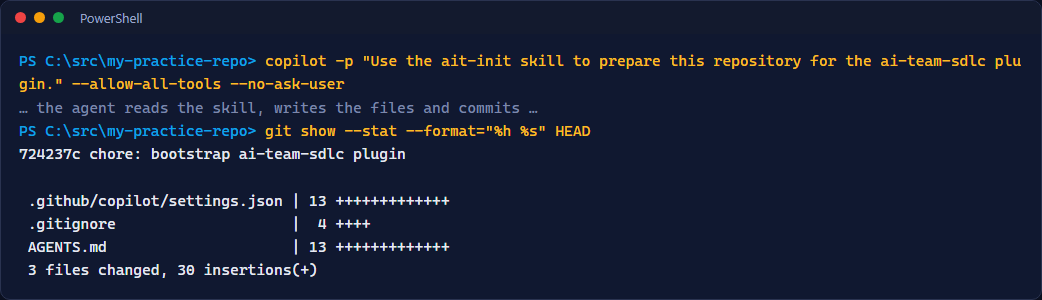
copilot -p "Use the ait-init skill to prepare this repository for the ai-team-sdlc plugin." --allow-all-tools --no-ask-user
git status --short
Expected result
The agent reports a result block. git status --short lists new files such as .github/copilot/settings.json, AGENTS.md, .gitignore and .copilot-tracking/.gitkeep. The tracking folder .copilot-tracking/ is git-ignored: it holds run state, never source code.
Commit the bootstrap:
Step 8: Run a cheap smoke test
Expected result
The answer is ready (or very close to it). The call costs almost nothing and proves that sign-in, network and model access work.
Prompts and skills in the CLI and in VS Code
The /product-* commands are prompt files for VS Code. In Copilot CLI you ask for the matching skill in plain words. The labs show both.
| VS Code prompt | Copilot CLI wording |
|---|---|
/product-run |
Use the ait-sdlc-orchestrate skill. Specs: ./specs/idea.md ... |
/product-design |
Use the ait-product-design skill ... |
/product-prototype |
Use the ait-product-prototype skill ... |
/product-specs |
Use the ait-tech-specs skill ... |
/product-implement |
Use the ait-implementation skill ... |
/product-qa |
Use the ait-qa-validation skill ... |
/product-review |
Use the ait-review-critic skill ... |
/product-security |
Use the ait-security skill ... |
/product-deploy |
Use the ait-deploy skill ... |
Validation checklist
Run this from the practice repository root. Every line must say OK.
$checks = [ordered]@{
  'PowerShell is UTF-8'    = [Console]::OutputEncoding.WebName -eq 'utf-8'
  'node on PATH'           = [bool](Get-Command node -ErrorAction SilentlyContinue)
  'git on PATH'            = [bool](Get-Command git -ErrorAction SilentlyContinue)
  'gh signed in'           = (gh auth status 2>&1 | Out-String) -match 'Logged in'
  'copilot on PATH'        = [bool](Get-Command copilot -ErrorAction SilentlyContinue)
  'plugin installed'       = (copilot plugin list 2>&1 | Out-String) -match 'ai-team-sdlc'
  'plugin enabled in repo' = Test-Path '.github/copilot/settings.json'
  'tracking store ignored' = [bool](Select-String -Path .gitignore -Pattern '.copilot-tracking/' -SimpleMatch -ErrorAction SilentlyContinue)
}
$checks.GetEnumerator() | ForEach-Object { '{0,-24} {1}' -f $_.Key, $(if ($_.Value) { 'OK' } else { 'MISSING' }) }
- The console uses UTF-8.
-
node,git,ghandcopilotprint a version. -
gh auth statusshows you are logged in. -
copilot plugin listshowsai-team-sdlc. - The practice repository contains
.github/copilot/settings.jsonandAGENTS.md. -
.copilot-tracking/is listed in.gitignore. - You know roughly what a full run costs and how to stop one.
Troubleshooting
npm or the corporate registry fails
Symptoms: ERR_SSL_SSL/TLS_ALERT_HANDSHAKE_FAILURE, E401, or install steps that hang. The labs need the public registry.
If your network uses a TLS-inspecting proxy, ask your administrator for the proxy and CA settings, or run the labs from a network without inspection. Never commit a lockfile that points to a private feed.
The agent ignores cd
The agent shell can strip a leading cd. Start copilot from the repository root and use relative paths. In scripts, use Set-Location -LiteralPath <absolute path> and print (Get-Location).Path to confirm.
The plugin is not listed
Run copilot plugin marketplace add devopsabcs-engineering/ai-team-sdlc again, then copilot plugin install ai-team-sdlc@ai-team-sdlc. Check your Copilot CLI version with copilot --version; run copilot update if it is old. Open a new terminal and retry copilot plugin list.
/product-run does nothing in the CLI
Those are VS Code prompts. In the CLI, write Use the ait-sdlc-orchestrate skill .... See the table above.
winget or a command is not recognized
Install or update App Installer from the Microsoft Store, then open a new terminal. A command that was just installed is not on the PATH of an already open window.
More help: Troubleshooting.
Knowledge check
Why start copilot from the repository root?
The agent's shell tool can ignore cd, so the folder where you start the CLI is the folder it works in. Starting at the root keeps every file operation inside your repository.
Is ait-init required?
No. The orchestrator creates the tracking store on its first run. ait-init only makes the adoption explicit: it enables the plugin in the repository, adds a short AGENTS.md pointer and git-ignores .copilot-tracking/.
Which two choices keep a lab run cheap?
Follow the recorded checkpoints instead of re-running everything, and keep the app small with one bounded phase per run.
What does --allow-all-tools change, and why is it risky?
It lets the agent run commands and edit files without asking you each time. Use it only in a practice or throwaway repository, never in a folder that holds work you cannot recreate.
Next steps
You are ready for Lab 1: From idea to brief, where you write the product brief that every later phase will follow.