Lab 02: axe-core — Automated Accessibility Testing
| Duration | 35 minutes |
| Level | Intermediate |
| Prerequisites | Lab 01 |
Learning Objectives
By the end of this lab, you will be able to:
- Scan a web page for accessibility violations using the scanner web UI
- Interpret scan results including violations, passes, incomplete checks, and impact levels
- Run accessibility scans via the CLI with JSON output
- Call the scanner API programmatically to scan a URL
- Compare scan results across multiple demo apps
Exercises
Exercise 2.1: Scan via Web UI
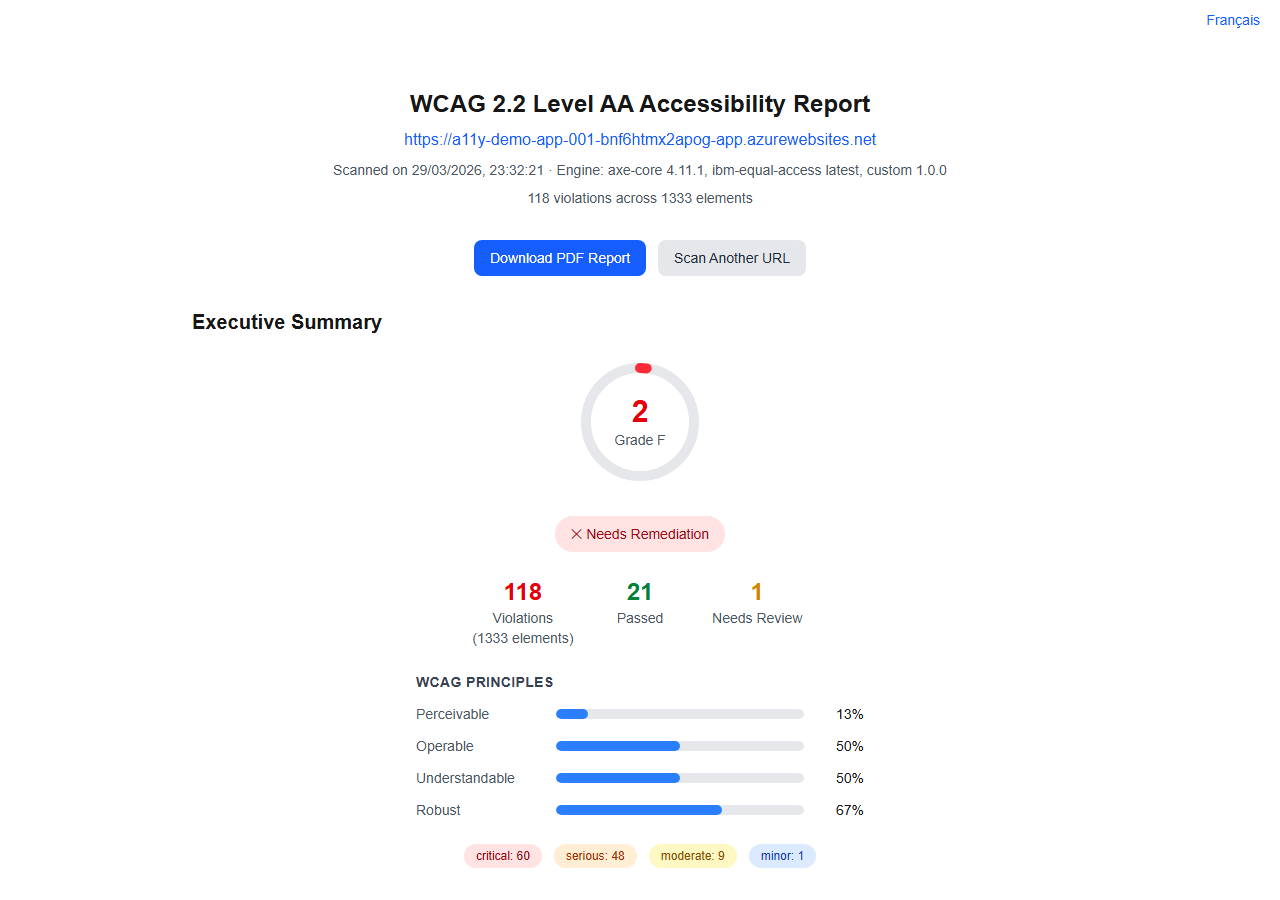
You will use the scanner’s web interface to run your first automated accessibility scan.
-
Ensure the scanner is running at
http://localhost:3000(started in Lab 00, Exercise 0.5). -
Ensure demo app 001 is running at
http://localhost:8001(started in Lab 01, Exercise 1.2). -
Open the scanner at
http://localhost:3000in your browser. -
Enter the demo app URL in the scan form:
http://host.docker.internal:8001[!NOTE] If your scanner is running via Docker, use
http://host.docker.internal:8001to reach the demo app. If both are running natively (not in Docker), usehttp://localhost:8001. -
Click Scan and wait for the results to appear.
Exercise 2.2: Interpret Scan Results
You will learn how to read and understand the scan output.
-
Review the scan results page. The scanner displays results in several categories:
Category Description Violations Rules that failed — confirmed accessibility issues Passes Rules that passed — no issues found Incomplete Rules that require manual review Inapplicable Rules that do not apply to the page content -
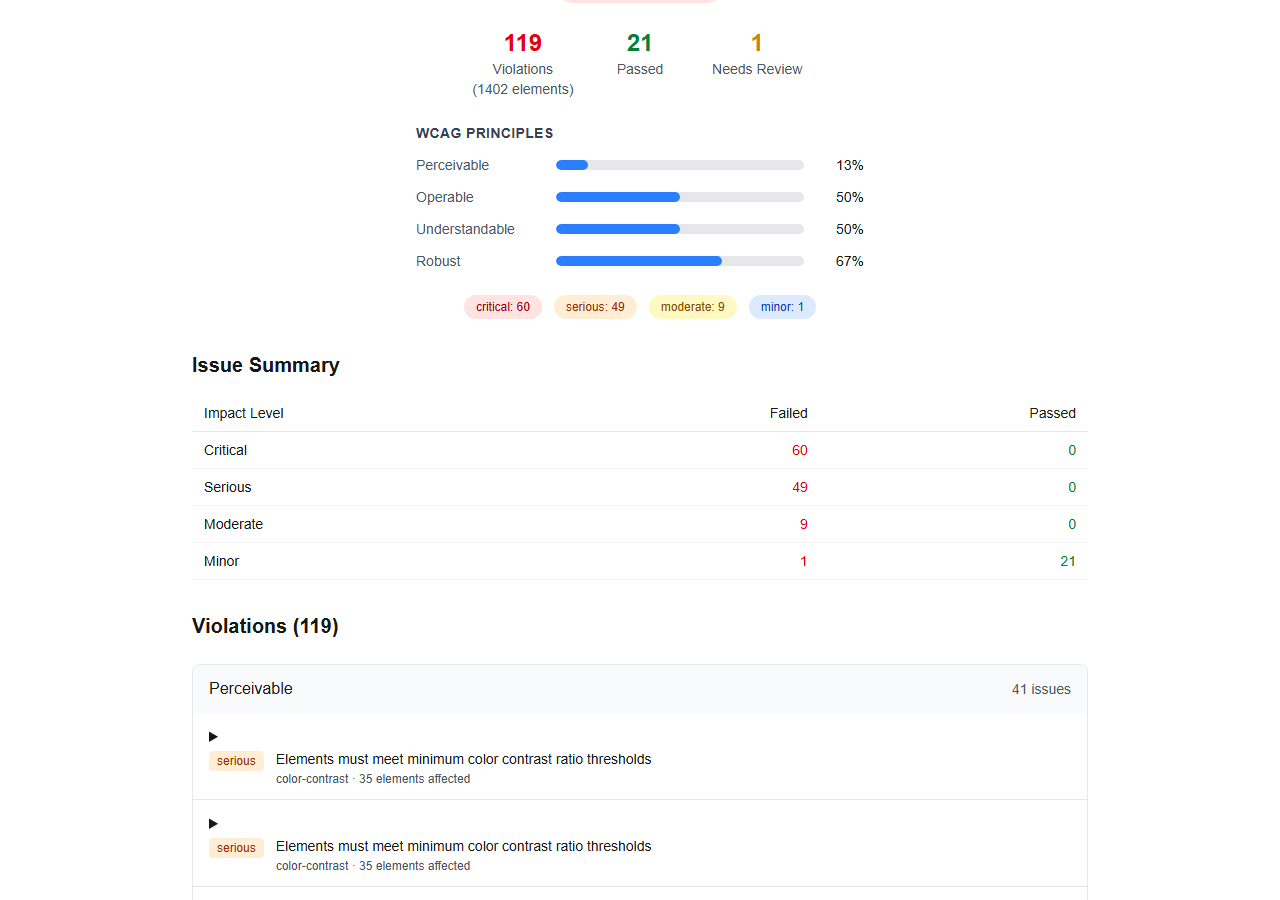
Focus on the Violations section. Each violation includes:
- Rule ID — The axe-core rule identifier (for example,
image-alt,color-contrast) - Impact — Severity level: critical, serious, moderate, or minor
- Description — What the rule checks for
- WCAG criteria — The WCAG success criterion the rule maps to
- Affected elements — HTML elements that triggered the violation

- Rule ID — The axe-core rule identifier (for example,
-
Click on a specific violation to expand its details. Note the CSS selector and HTML snippet for each affected element.
-
Review the impact level distribution. Demo app 001 typically produces:
- Critical: Missing lang attribute, keyboard traps
- Serious: Missing alt text, poor contrast, missing form labels
- Moderate: Heading hierarchy, missing table headers
- Minor: Deprecated elements
Exercise 2.3: Scan via CLI
You will run the same scan from the command line with JSON output.
-
Open a terminal in the scanner repository root.
-
Run the CLI scan command:
npx ts-node src/cli/commands/scan.ts --url http://localhost:8001 --format json -
Review the JSON output in your terminal. The structure includes:
{ "url": "http://localhost:8001", "score": 25, "violations": [...], "passes": [...], "incomplete": [...] } -
Save the output to a file for later analysis:
npx ts-node src/cli/commands/scan.ts --url http://localhost:8001 --format json --output results/demo-001.json
[!TIP] The
--formatflag supportsjson,sarif, andjunit. You will explore SARIF output in detail in Lab 05.
Exercise 2.4: Scan via API
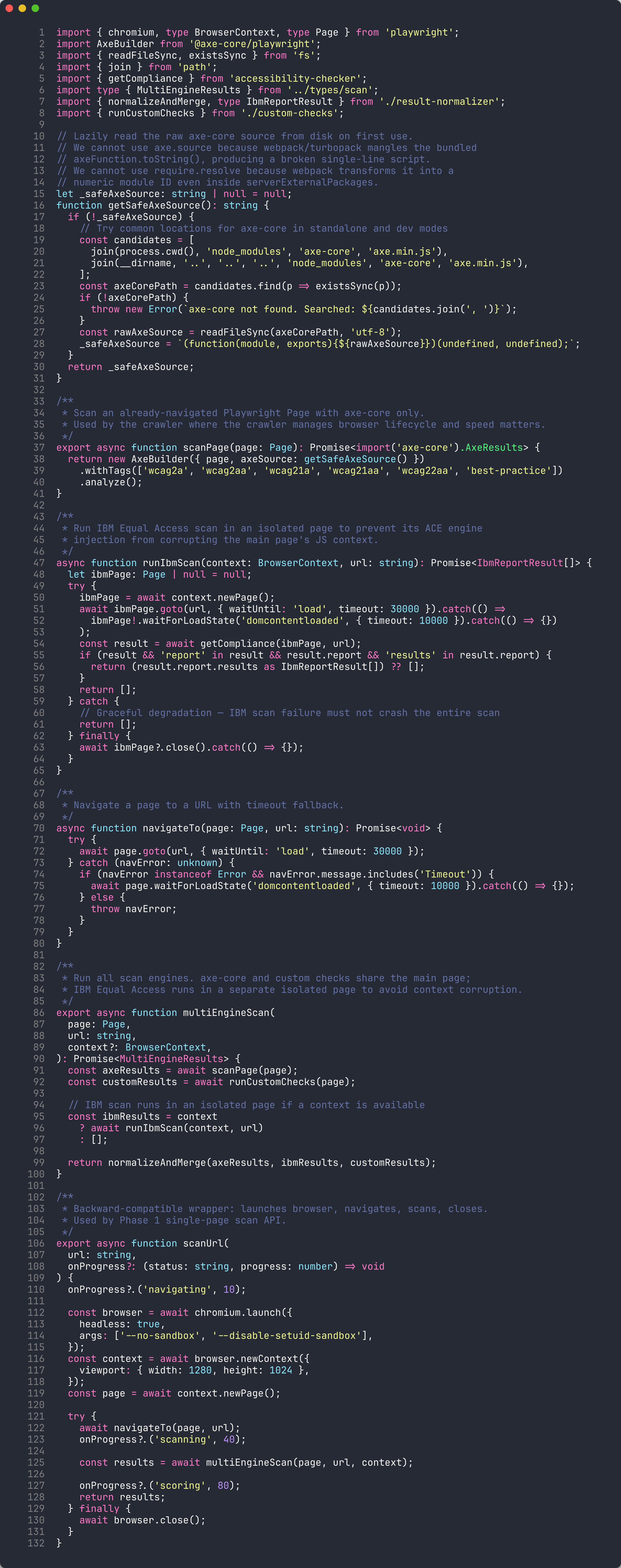
You will call the scanner’s REST API to demonstrate programmatic scanning.
-
With the scanner running at
http://localhost:3000, send a POST request:curl -X POST http://localhost:3000/api/scan \ -H "Content-Type: application/json" \ -d '{"url":"http://localhost:8001"}'On PowerShell:
Invoke-RestMethod -Uri "http://localhost:3000/api/scan" ` -Method Post ` -ContentType "application/json" ` -Body '{"url":"http://localhost:8001"}' -
The API returns a JSON response with the same structure as the CLI output.
-
Note the
scorefield in the response. This is the accessibility score on a 0–100 scale that the scanner computes based on the violation-to-pass ratio.
Exercise 2.5: Compare Results Across Demo Apps
You will scan multiple demo apps and compare their violation counts.
-
Start the remaining demo apps if they are not already running:
docker build -t a11y-demo-app-002 ./a11y-demo-app-002 docker run -d --name a11y-002 -p 8002:8080 a11y-demo-app-002 docker build -t a11y-demo-app-003 ./a11y-demo-app-003 docker run -d --name a11y-003 -p 8003:8080 a11y-demo-app-003 docker build -t a11y-demo-app-004 ./a11y-demo-app-004 docker run -d --name a11y-004 -p 8004:8080 a11y-demo-app-004 docker build -t a11y-demo-app-005 ./a11y-demo-app-005 docker run -d --name a11y-005 -p 8005:8080 a11y-demo-app-005 -
Scan each app via the CLI and compare the results:
npx ts-node src/cli/commands/scan.ts --url http://localhost:8001 --format json --output results/demo-001.json npx ts-node src/cli/commands/scan.ts --url http://localhost:8002 --format json --output results/demo-002.json npx ts-node src/cli/commands/scan.ts --url http://localhost:8003 --format json --output results/demo-003.json npx ts-node src/cli/commands/scan.ts --url http://localhost:8004 --format json --output results/demo-004.json npx ts-node src/cli/commands/scan.ts --url http://localhost:8005 --format json --output results/demo-005.json -
Compare the violation counts. Expected pattern:
App Expected Score Notable Differences 001 Low (~25) Baseline violations 002 Lowest (~20) Additional tab interface and image map violations 003 Low (~25) Similar to 001 004 Low (~25) Similar to 001 005 Low (~25) Similar to 001 
[!NOTE] App 002 (C# / ASP.NET) typically has the most violations because it includes an inaccessible custom tab interface and an image map without alt text, in addition to all the violations shared by the other apps.
Verification Checkpoint
Before proceeding, verify:
- Scanned demo app 001 via the web UI and reviewed the results
- Can explain the difference between violations, passes, and incomplete checks
- Successfully ran a CLI scan with JSON output saved to a file
- Called the scanner API and received a JSON response
- Scanned at least 2 demo apps and compared their violation counts
Next Steps
Proceed to Lab 03: IBM Equal Access — Comprehensive Policy Scanning.